Category Archives: Apple iOS

Posts about the iPhone and (most times) also about the iPod Touch (the “iTouch”) and the iPad (which I don’t have YET!).

You can now use 12seconds.tv to send Video from your iPhone 3gs

They’ve now released 12cast to record and post video to 12seconds.tv for the iPhone 3gs. And it’s free! This lets you shoot video and upload directly or upload video that you’ve already shot. It’s interface is very simple (see below) although I think it could use a few more features (see below).


12cast test on my iPhone on 12seconds.tv

I’ll probably be testing this a bit this weekend so keep an eye on my 12seconds.tv channel http://12seconds.tv/channel/garylapointe/ and feel free to subscribe.

If this seems fun to you, you better go get 12cast before Apple pulls it from the store for some reason!

FYI – If your iPhone doesn’t do video you can still use the original 12seconds which lets you narrate 3 photos to make a 12secons.tv video. Here’s a sample I did.

12cast.pngNeeds a few really quick features:

  • Show me today’s 12seconds.tv challenge!
  • Needs to give me an option to upload it to 12seconds without going to Twitter.
  • Needs to let me type tags (and remember tags from previous upload!).
  • Needs to let me use update location (and autofill with GPS!).
  • This one probably isn’t so quick: Need a way to trim the video. Mostly if I’m trying to record myself it’s always jumpy at the begin and end. (Apple needs a way to set the API so you can click a button to “start recording in 3 seconds” and have it countdown.)

I really wish they had combined it with the older three photos application, I’ve got so much crap on my iPhone I really don’t need an additional application, but I can see some use of the other app too.

Access your MobileMe iDisk from your iPhone

Apple has finally released the iPhone iDisk application for the iPhone! Bottom line is that you can browse your iDisk from your iPhone. You can view PDFs, Office and iWork docs.

idisk.pngPros:

  • It’s Free!
  • You can view PDFs, HTML, Office (Word, Excel, PowerPoint) and iWork docs.
  • It’ll view images and stream video and audio (Apple supported formats).
  • It will cache files to the iPhone for faster access and you get to define how much space to use.
  • You can search to find your files.
  • You can share files right from the iPhone.
  • You can delete from the phone (oops, maybe this is a con!).
  • Works in landscape mode.
  • Keeps track of files you recently accessed via the iPhone.
  • You can access other member’s public folders.

    Cons:

  • You can’t view text clippings (why not?!?).
  • You can only view by alphabetical order.
  • HTML links are not clickable.
  • Can’t see full filenames sometimes (landscape helps) or file creation dates.

    All together, if you’ve got MobileMe and use the iDisk, this is a no-brainer to download.

  • Getting my memos from my Palm Handheld to my iPhone

    I never imagined getting my memos (just text notes) from my Palm Treo 755p could be such a hassle. First let me point out how important some of these memos are to me, they aren’t just from my Treo 755p: before that they were on my Treo 700p, before then they were on my Samsung SPH-i500 (best phone ever!) and also my Samsung(s) SPH-i330 and SPH-i300 (from 2001, I think). So some of these note have been around for a while…

    Googling around there is no good solution to get them on the phone into the iPhone Notes application, lots of people looking for solutions. The simple solution (but not what I wanted) was just to open Palm Desktop (for the Mac) and print all your memos to a PDF file and e-mail it to yourself and you can always open that later (or store it on your iDisk if you have MobileMe).

    Here’s the steps I went through to get them into the iPhone Notes application (I’ve only been using an iPhone since OS 3.0 so I don’t know when they added the Notes feature):

    phoneview.jpg1- Export your memos from the Palm Desktop software (I did this on my MacBook) choosing exported as tab delimited (you can turn some of the columns off if you want, I only exported the title and the body of the memos).
    2- Then I opened this text file up in the Mac’s TextEdit application, did a few search and replaces of any goofy characters.
    3- Then I used PhoneView from ecamm to view the notes on the phone.
    Here’s the mundane part:
    4- I highlighted the title and body of a memo.
    5- Dragged the selected text into the PhoneView application and let go.
    6- PhoneView created a memo with the first line of text being the title which was exactly what I wanted.
    7- Go back to step 4 and repeat for every memo you want. I only kept about 60% of my memos and more than a few of those might be out of date (but I have them!!!).
    8- Click the Apply Changes button in PhoneView to save the changes to the iPhone.
    9- I then exited the application and synced with iTunes.
    10- I then checked the Mail application on my MacBook for my Notes (why are notes kept in the Mail application?) and they were all there.

    PhoneView has a free demo, but I don’t know if any limitations will stop you from doing this. I already owned the application so I don’t know about this. If you’re reading this far, you obviously owned a Palm OS handheld so if you ever owned BeamPro, this is the company that wrote that software. And ecamm is the same company that wrote CardRaider which saved my Chicago photos last summer.

    Obviously, PhoneView isn’t made by Apple so I’m sure if it screws something up, it’s not covered under warranty. But a restore from your backup should make it all happy again if something happens.

    More ramblings about this process:

    This will take you a while if you have thousands of notes, so I thought I’d mention a few things.

    After step one (1) I was able to import this document into the spreadsheet in Google Docs and it put the title in one column and the body in another, so if you can manipulate it from there you might be okay. If I recall correctly if I could save each memo as it’s own text file I could just drag that to the Mail application Notes area (or PhoneView) but I didn’t have a way to separate the memos easily. Otherwise I think I just could have dragged 100 notes files in very quickly (Mail didn’t want let me drag TextClippings in nor could I view them via the iPhone iDisk application).

    Remember, the notes only get synced with iTunes, no wireless syncing with MobileMe (not even an option to view in MobileMe).

    Other space information in time for today’s anniversary…

    I mentioned the anniversary of the Apollo 11 Moon landing earlier today. Here’s a few other “space” things that caught my eye:

    themoon.jpg

  • Apollo 11 restored HD video.
  • Send your name to Mars and get a certificate.
  • For your iPhone and iPod Touch get SkyVoyager and SkyGazer for free today (normally $17.98 combined).
  • Photos of the Moon landing sites from the LRO.
  • And Google has added the Moon to Google Earth (desktop application).
  • That’s it for now. Please post any recommended links in the comments below.

    Photo courtesy of Wikipedia.

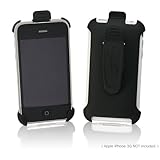
    Please help me find a Apple iPhone 3gs Holster!

    Apple iPhone 3G Holster Clip BoxWave CorporationSo I have a holster for my iPhone that looks like this (I think it’s this same case with different branding). And it’s a great case! It’s plastic and holds the phone in just perfect, the clip at the top keeps the phone from bouncing out (the clip is important to me). But it’s got the screen exposed…

    What I want is for the iPhone to face inward, to protect the screen. That’s what I had for my 755p and I really liked that. Any suggestions?

    I’ve only found one and it doesn’t look like it has a clip at the top, not sure how it rotates without phone falling out.

    Honestly, I’m tempted to get a heat gun and make it a little bigger at the bottom so it’ll fit face forward. I just don’t know how much more fragile that will make the plastic. Plus, there isn’t anything soft on the plastic to protect the screen.

    UPDATE: This is the Seidio iPhone case and clip that I got.

    AutoStitch – Building Panoramas on your iPhone Automagically

    autostitch-icon.pngSo one of the coolest programs I’ve downloaded from the iPhone App Store is AutoStitch. It takes a bunch of photos and stitches them together. Alex Lindsey talked about this on MacBreak Weekly a few weeks ago. He spoke so highly of it, I plopped down my $1.99 and started using it immediately.

    autostitch-screen-capture.PNGYou take a bunch of overlapping photos and it stitches them together, it does this completely automatically, there is no user intervention. You can use pictures you’ve taken with the iPhone but you can just as easily use pictures that you’ve synced with the phone. So this can work for the iPod Touch too, just sync some photos and when you’ve got some spare time, stitch them together. It does an amazing job.

    I first used some photos that I shot on my Canon SD1100, it that just happened to be synced to the phone and did a great job of stitching them together. So you don’t need an iPhone, an iPod Touch with photos that you’ve synced works great too.

    Above you can see a sample screenshot from the program where I chose 22 photos and it stitched them together (click it to enlarge). Remember all I did was pick the photos and a few minutes later it churned these out. All these photos were taken with the iPhone 3gs. If I cropped some of the edges of the photos, it’d look like I took there with a really wide angle lens.

    Here are two samples:

    detroit-cityfestjaggies.JPG
    I chose this one specifically so you can really see how it pieces these together. It’s got gaps in it, (I think) this is the one I took 22 photos for the image; just the part with the people on the blanket in the middle is 3 or 4 images.
    Click the image to enlarge to 2,500 by 800 pixels.


    detroitcityfest.JPG
    This one is more complete as I took many up and down photos to go with it. That’s the Detroit Fisher Building on the left.
    Click the image to enlarge to 2,000 by 1,000 pixels.

    These pictures were taken at CityFest in Detroit this summer.

    I’ve used it multiple times and only once had a problem; it got confused when I did a 360 panorama when the same type of railing showed up several times, this was because all the condos where I live are similar so it really couldn’t match things up. There are some matching issues with color/contrast and people moving, but this is really great!

    This software is well worth the $1.99! I think I got that much fun out of it in the first hour, let alone all the time since then. ZZZ

    Why get the iPhone 3gs instead of the iPhone 3g?

    I’ve had a few people just happy that the iPhone phone dropped to $99 (for 8GB) and are tempted to get that instead of the $199 model with more features (and 16 GB). They want to know if it’s really worth the $100 more.

    Here’s why it’s worth it (and I’m not even going to point out the things that you think I will):
    3gornor3g.pngJust a few weeks ago there was $100 difference between the $199 (8 GB) and $299 (16 GB) iPhone 3g models and the only difference was 8GB of storage. Right now the $99 model is 8 GB and $199 is 16 GB so it’s the same $99 for 8 GB. The 8 GB iPod Touch (it’s an iPhone with no phone, no GPS, no camera, no microphone and lots of other stuff too) is $229 and you don’t get much at all! Here’s my countdown list on why to get the 3gs, please note that compass, video and better photos are the last three reasons, not the top three. This list is really for those who are making a purchase that think they don’t want the compass or better camera w/ video; this is not a reason to upgrade from the iPhone 3g, that’s expensive.

    Here’s everything between the $99 iPhone 3g and the iPhone $199 3gs:

    • 8 GB of storage (flash) memory – twice as much storage memory for apps and videos and music and audiobooks.
    • 256 MB of RAM – twice as much memory for applications to run in (more efficiently which makes it seem faster).
    • Faster Processor – The main processor is 50% faster and a faster graphics chip, Apple says this gives you up to twice the speed.
    • Better battery life – For just about everything but phone calls and 3g network use.
    • Faster network – This will utilize AT&T’s faster network (once it gets installed) which should improve battery life according to Apple.
    • Oleophobic coating on screen – more fingerprint resistant (geeky oleophobic details from Bill Nye
    • Photos – 3.2 MP with tap to focus (instead of 2 MP).
    • Video Recording – This is new, not on the other models. You can directly upload to YouTube, MobileMe and (I assume) email to someone.
    • Compass – Maps will orient the right way and I think people will come out with some cool applications utilizing this. I think thinking astronomy applications first, point at the sky and it identifies what you are viewing and offers links to more information or you ask it for a star or planet and it points it out for you (I predict this won’t take long at all, scroll down on this page to see this for G1); maybe even point out satellites as they travel across the sky. Then I’m counting on being at a national park or a big city and point my phone at something and it will supply all sorts of information about that landmark. See this page for a sample tourist image or imagine this (see video) but overlaid on top of live images of where you are. Or this interactive view of Wimbeldon.

    Did I leave anything out? How far did you have to go down the list before you decided it was worth $99?

    The first four are really the biggest value: Twice the storage, twice the memory (this will help), faster processor and better battery life!

    Notes: I do understand that Apple is only charging $100 for 16 GB more memory in the $299, but since you don’t want to spend that much, we’re really not going go there.

    TweetDeck for iPhone syncs with the desktop (and it’s free!)

    tweetdeckiphone.gifSo in my attempt to start using Twitter more I installed TweetDeck today. Coincidentally, later on today they also released a free iPhone/Touch version of TweetDeck today which will sync with your columns (you need to download the new desktop version for the syncing). Syncs with multiple desktop clients too.

    It seems like a great iPhone/Touch client even on it’s own: Take photos and immediately post to Twitter (via TwitPic etc.), shake to refresh, reorder columns.

    tweetdeck.pngAnd TweetDeck appears to support multiple Twitter accounts (I don’t think that feature was in there earlier today).

    Later: Looks like it only syncs columns you create after installing the new version. At least that’s the only way I can get it to work. And I manually had to sync, it doesn’t seem to be persistent, but I’m not changing my columns that often so no problem for me. (I relaunched to test but still no joy, maybe I just need to wait?)Not getting any syncing between my “columns”. I think I’m doing something wrong(?).

    Even Later: So the iPhone version is syncing when it loads today (it was not doing this yesterday); it actually asks before adding a column. But the desktop version (for Mac) isn’t asking me to do this.